Create a New Trade of Blox Fruits
Choose what you're offering and what you want.
Specific Trade
Open to Offers
How to Post a Trade on TradeKitsune

STEP 1: Pick Your Trade Type
Choose "Specific Trade" if you know what you want, or "Open to Offers" to get offers and set your limits.

STEP 2: Select Your Items
Add the items you want to trade, and adjust the item's parameters for best value.
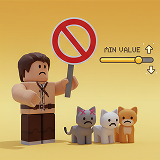
STEP 3: Set Offer Rules
For open offers, select items you don't want (NLF), and set your lowest accepted value.
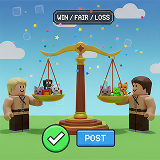
STEP 4: Check the Deal
See if your trade is Win, Fair, or Loss. Edit until you're happy, then post!
💗Friendly Reminders💗
- Stay Online -After posting a trade, remain online so you can respond to offers quickly.
- Verify Details -Double check the item information and all trade conditions before confirming.
- Protect Your Account -Avoid unknown third‑party links, and make sure the trader's Roblox ID matches their in‑game ID.
- Report Suspicious Activity -If you see a suspicious trade or possible scam, report in the Chat immediately.
- Start Small -New traders could begin with low‑value items to gain experience before making high‑value trades.
FAQ of Blox Fruits
Q1: Why can't I post my trade? (Red warning)
A: Physical Fruits only: If it shows "Beli Value difference is too large (Max. 40%)", it exceeds the in-game limit and will fail. You must add items or change items with higher Beli to bring the difference under 40% before posting.
Q2: I see "Beli Value difference is over 60%" but can still post. What does this mean?
A: Gamepass trades only: When your trade includes Gamepasses (but no Permanent Fruits or Limited items), we show an orange warning at 60%+. You can still post, but consider adding fillers to help you complete it in-game more easily. The actual in-game limit is around 70-100% for Gamepasses.
Q3: What does "Open to Offers" mean?
A: You're not asking for specific items - you're open to random offers. This may attract more buyers but also increases low-quality or irrelevant offers.
Q4: What should I watch out for when posting a listing?
A: Avoid scams: Never share unknown links. Be clear about what you want to reduce confusion. Don't trust unverified middlemen.
Q5: What does "Not Looking For (NLF)" mean?
A: NLF lets you exclude items you don't want. When buyers make offers, your NLF items are marked as "not wanted" on the page, helping buyers adjust their offers without wasting time.
Q6: How does "Value Requirement" work in Open Offers?
A: Sets the minimum total value you'll accept from any offer. Default is 50% of your items' value, but you can adjust or disable it. If set to zero, buyers can offer any value.