How to Trade on TradeKitsune – Beginner's Guide
TradeKitsune is a multi-game trading hub for Roblox. We support popular games like Grow a Garden, Blox Fruits, and more, enabling safe, convenient trades for a richer gaming experience.
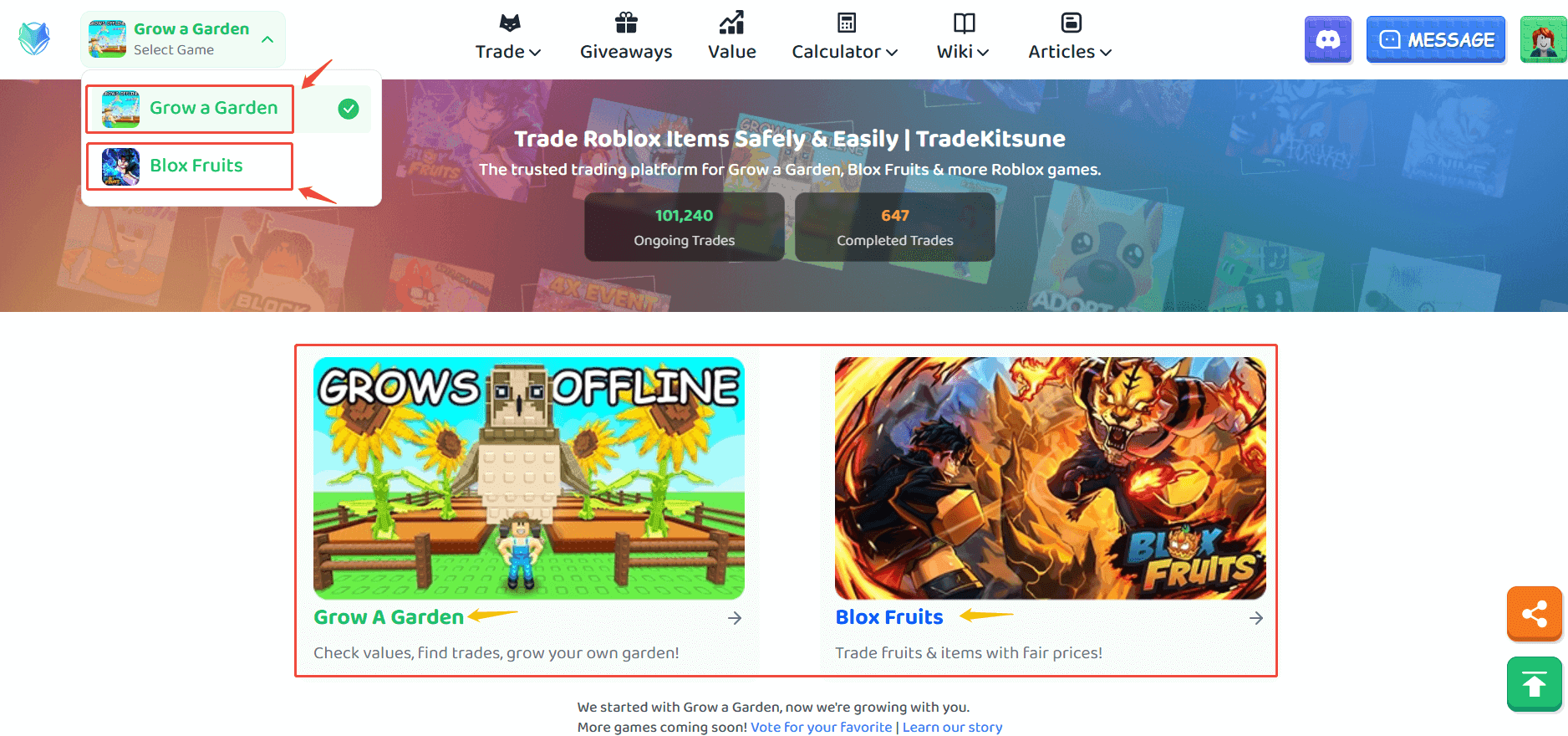
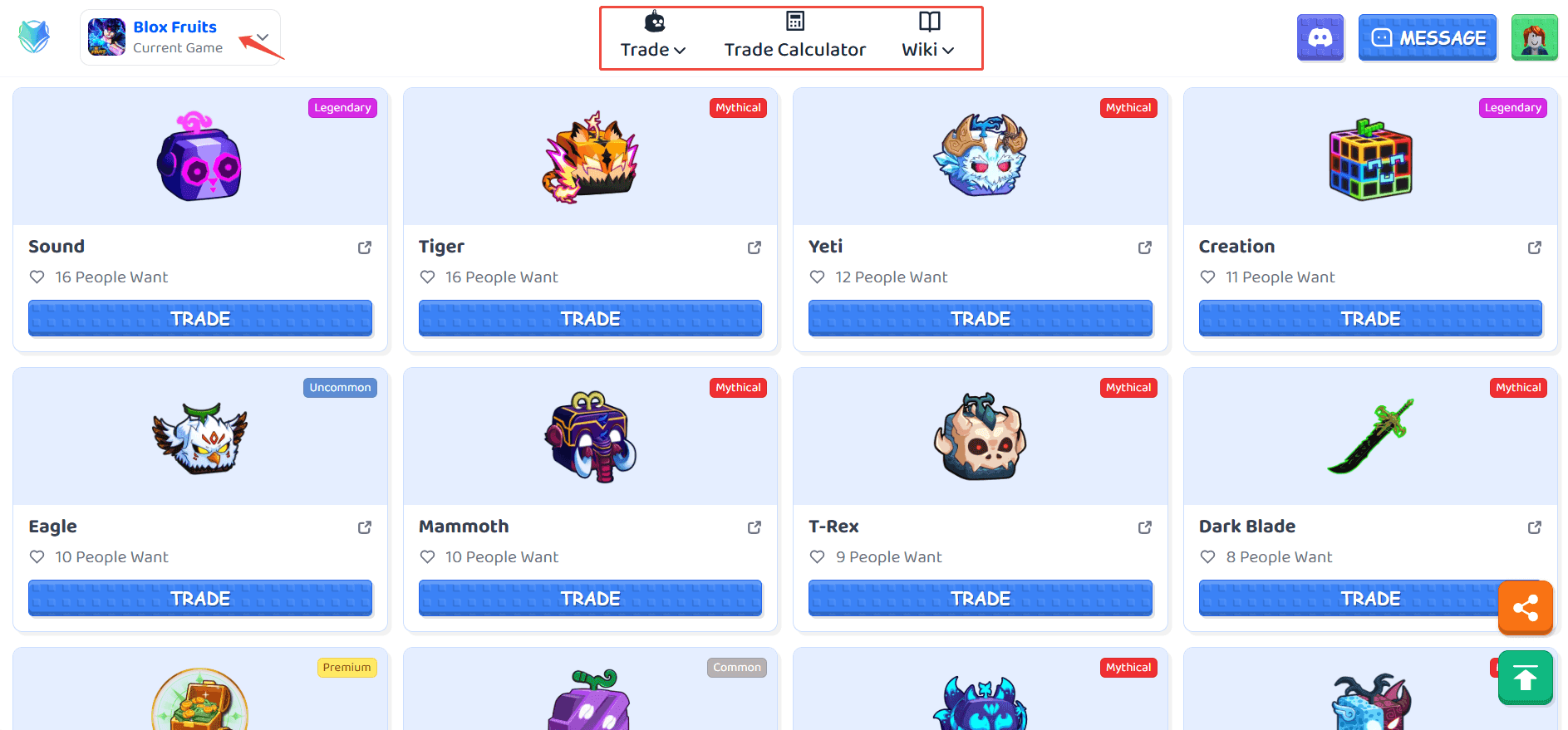
Before using the platform, please select your game: click the central panel on the homepage or use the top-left game icon to switch. You can then browse listings or post your own trades.
How It Works: Grow A Garden Demo
Curious how trading works? See for yourself in our tutorial video, featuring a step-by-step demo with Grow a Garden.
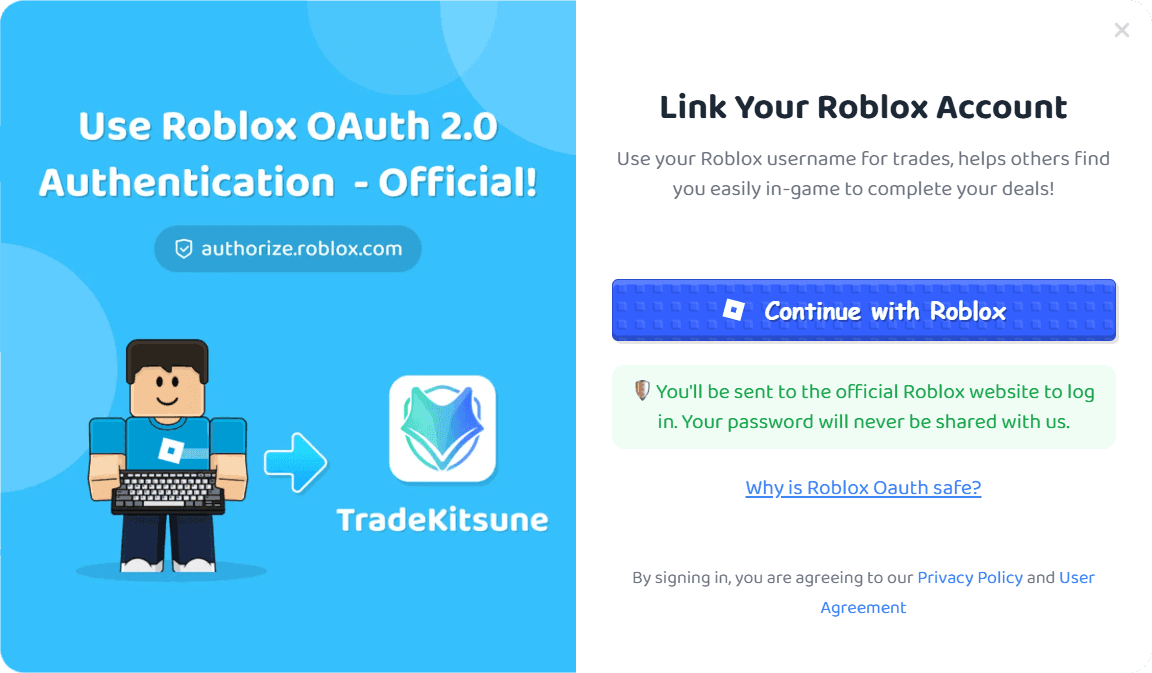
Log in with your Roblox ID
You must log in with your Roblox ID to get verified and start trading.
Finding a Trade as a Buyer
Search for the items you need using the trade lists.
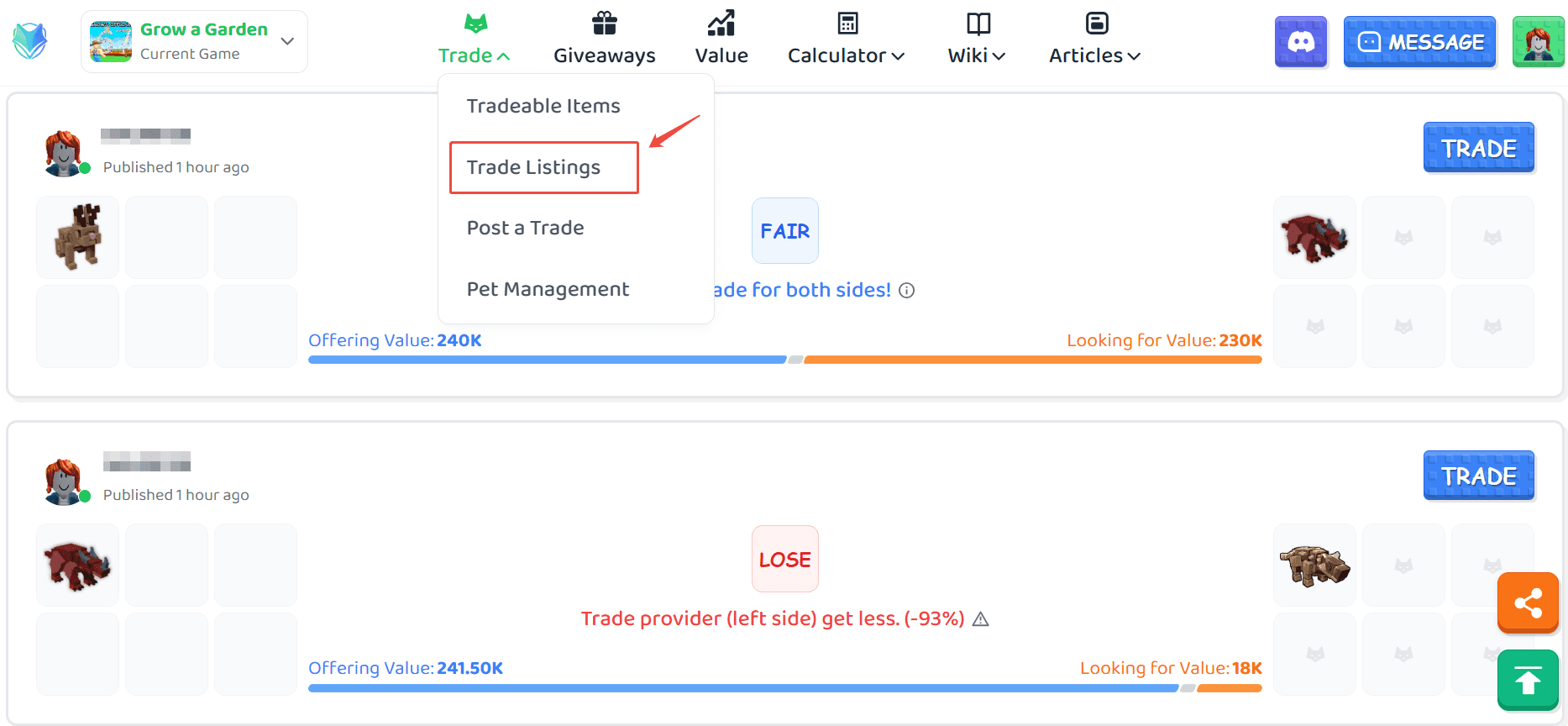
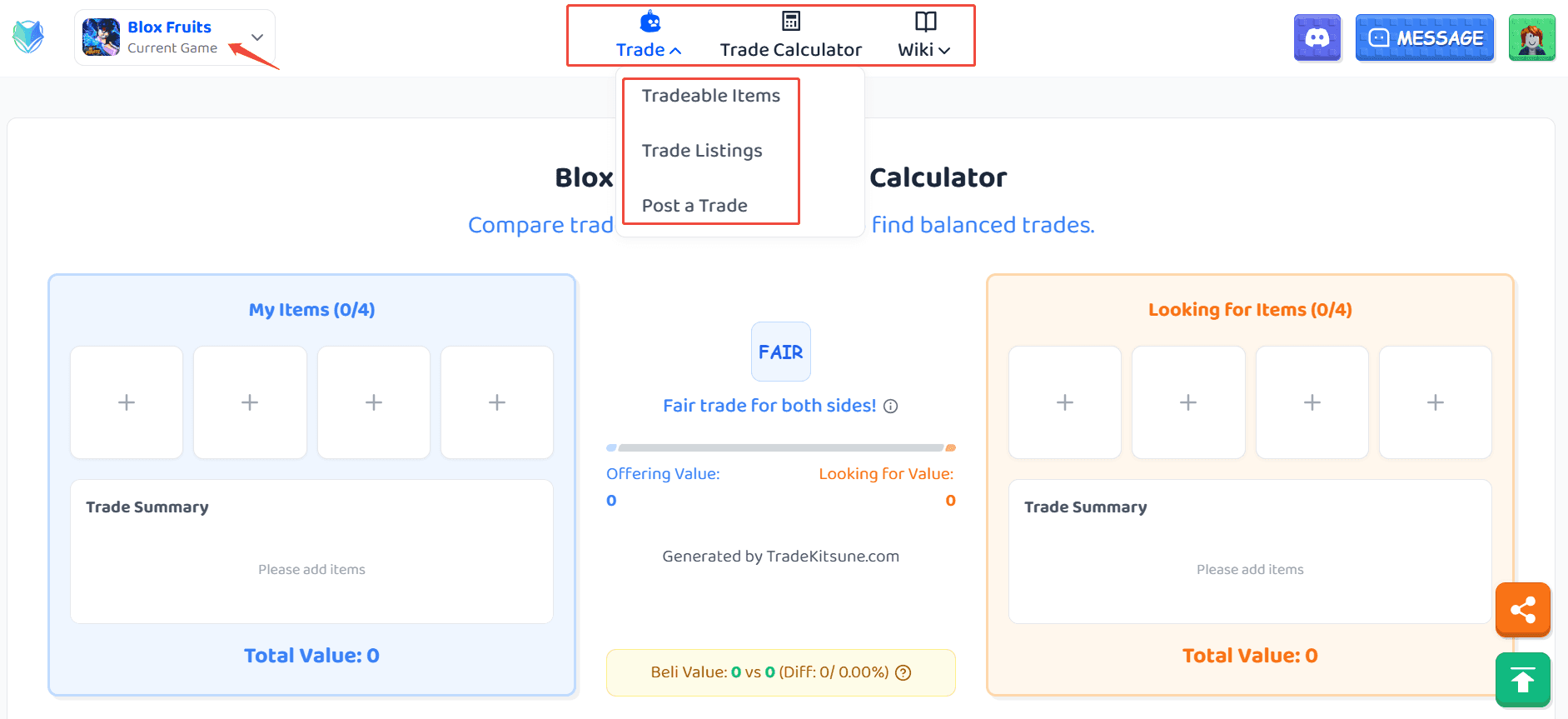
- Use the top navigation to open Trade → Trade Listings to see the latest posts.
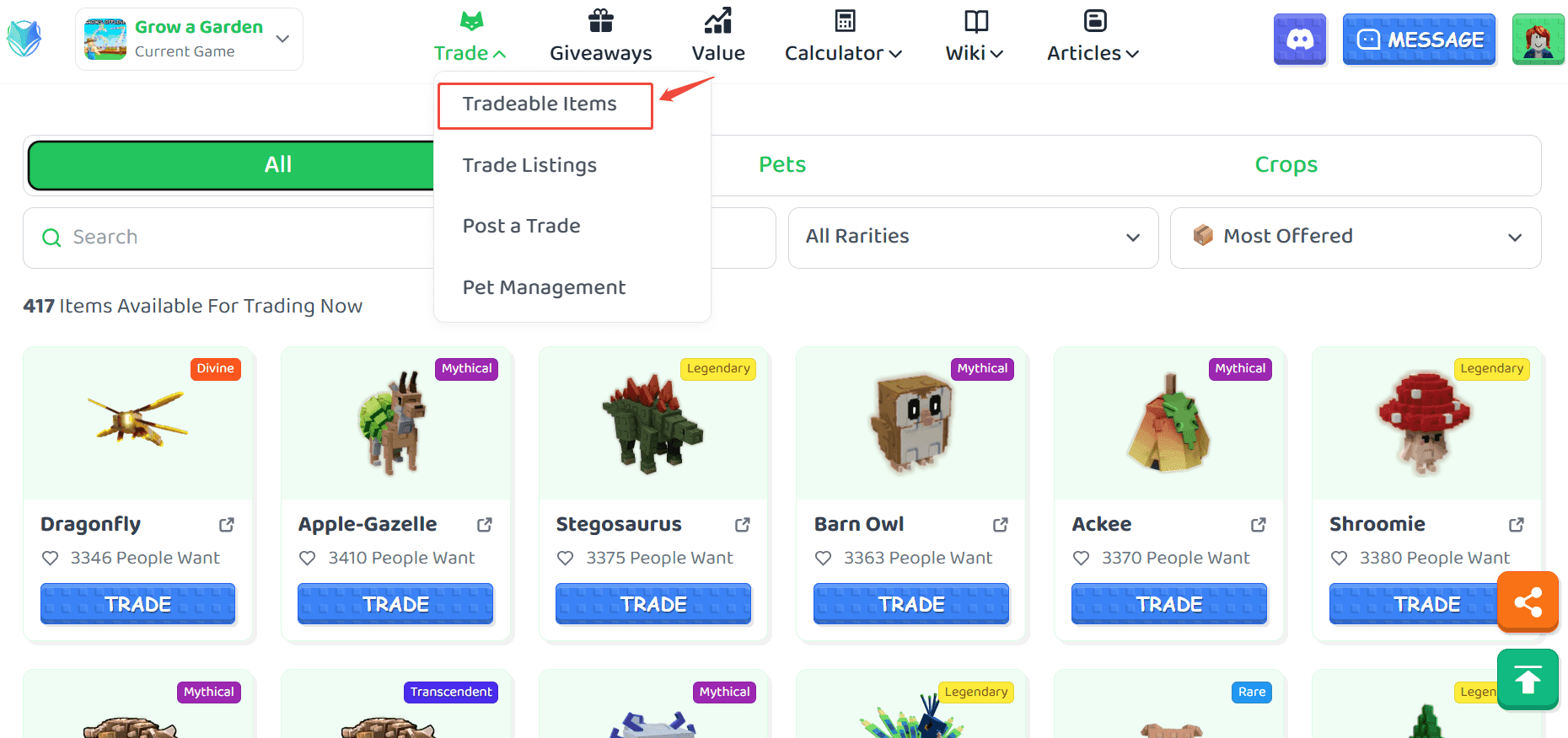
- You can also check Tradeable Items to find newly supported trade items for the current game.
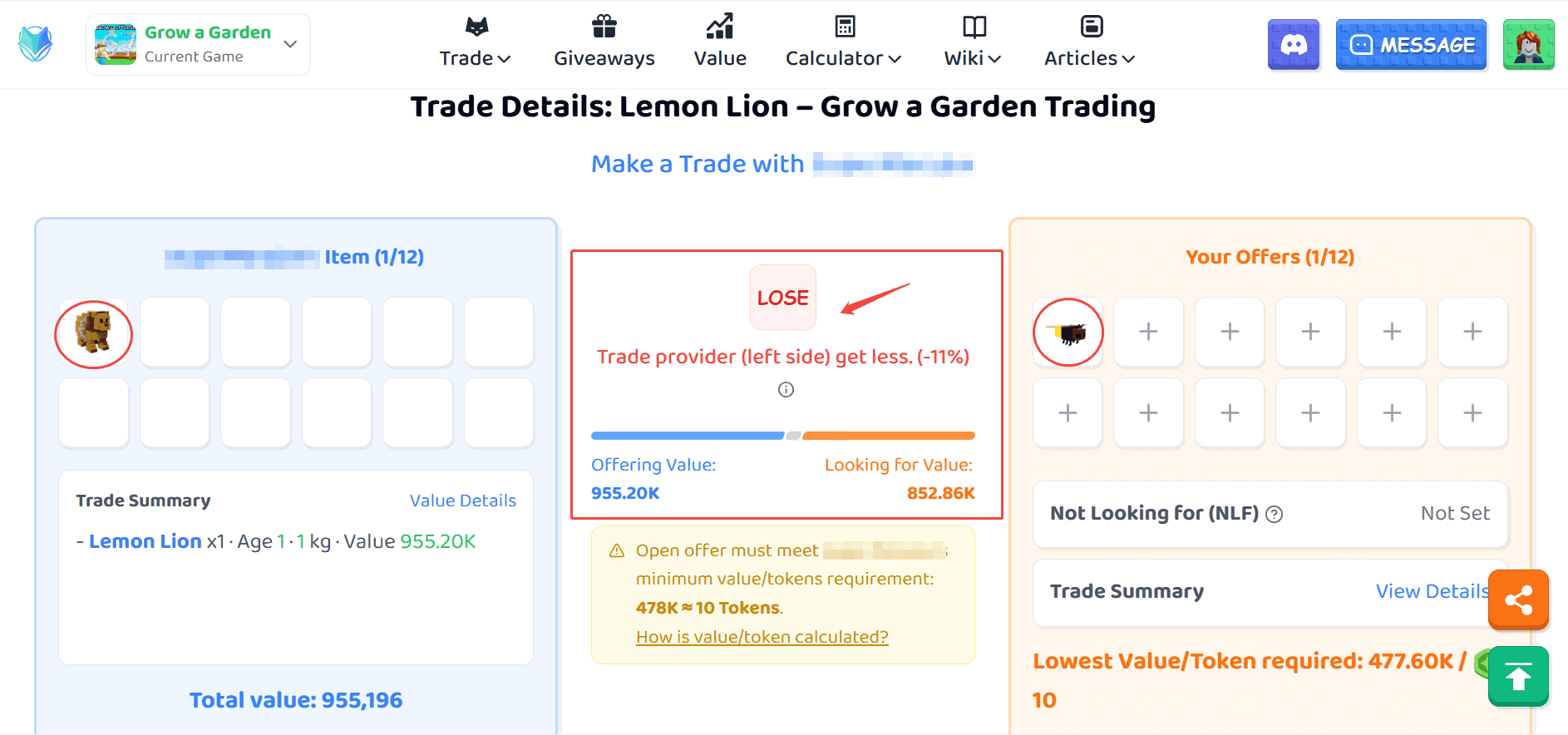
- Use our trade value assessment system to evaluate the WFL (Win/Fair/Lose) of a potential trade. (Click here to see how WFL is calculated.)
Accepting or Making an Offer
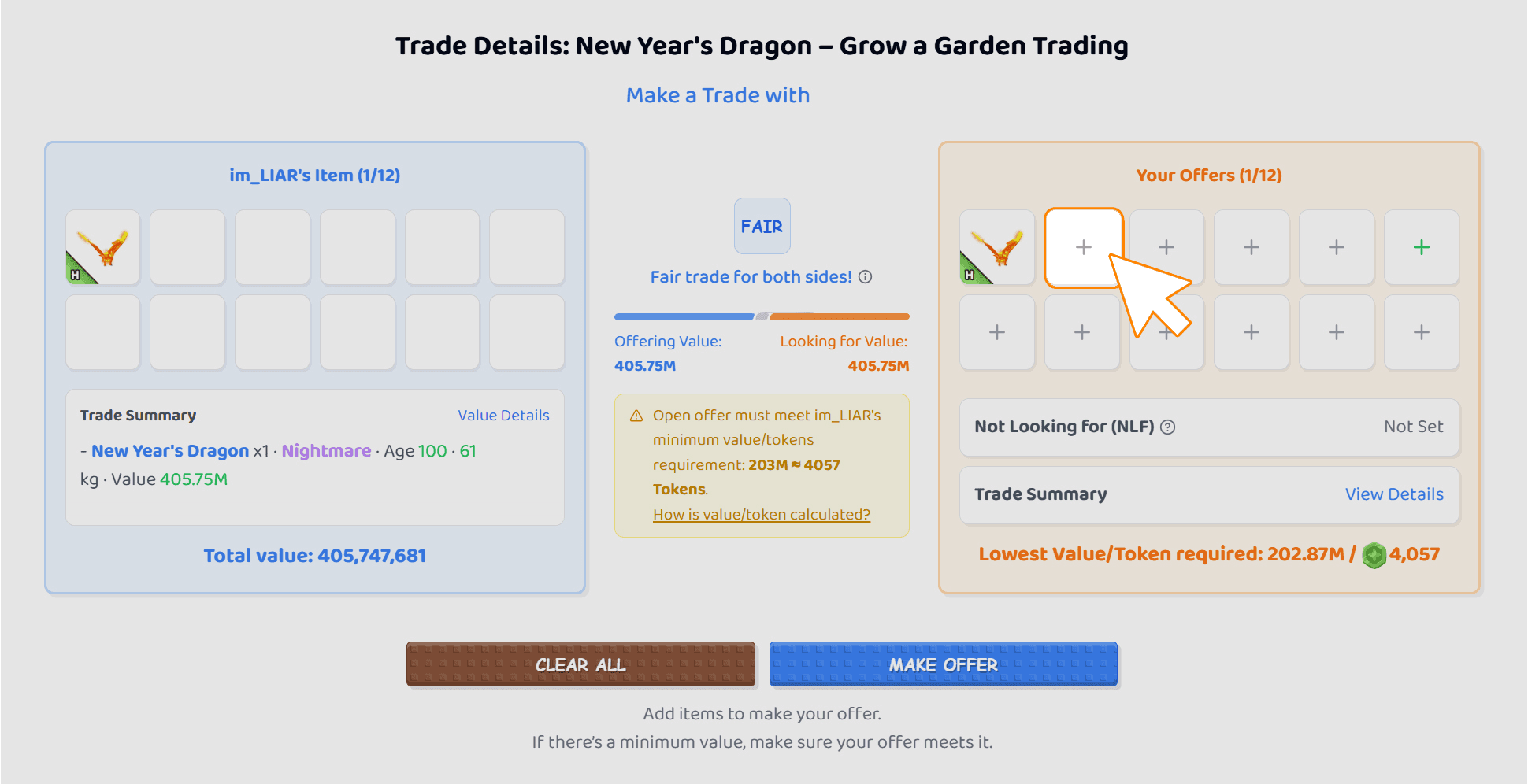
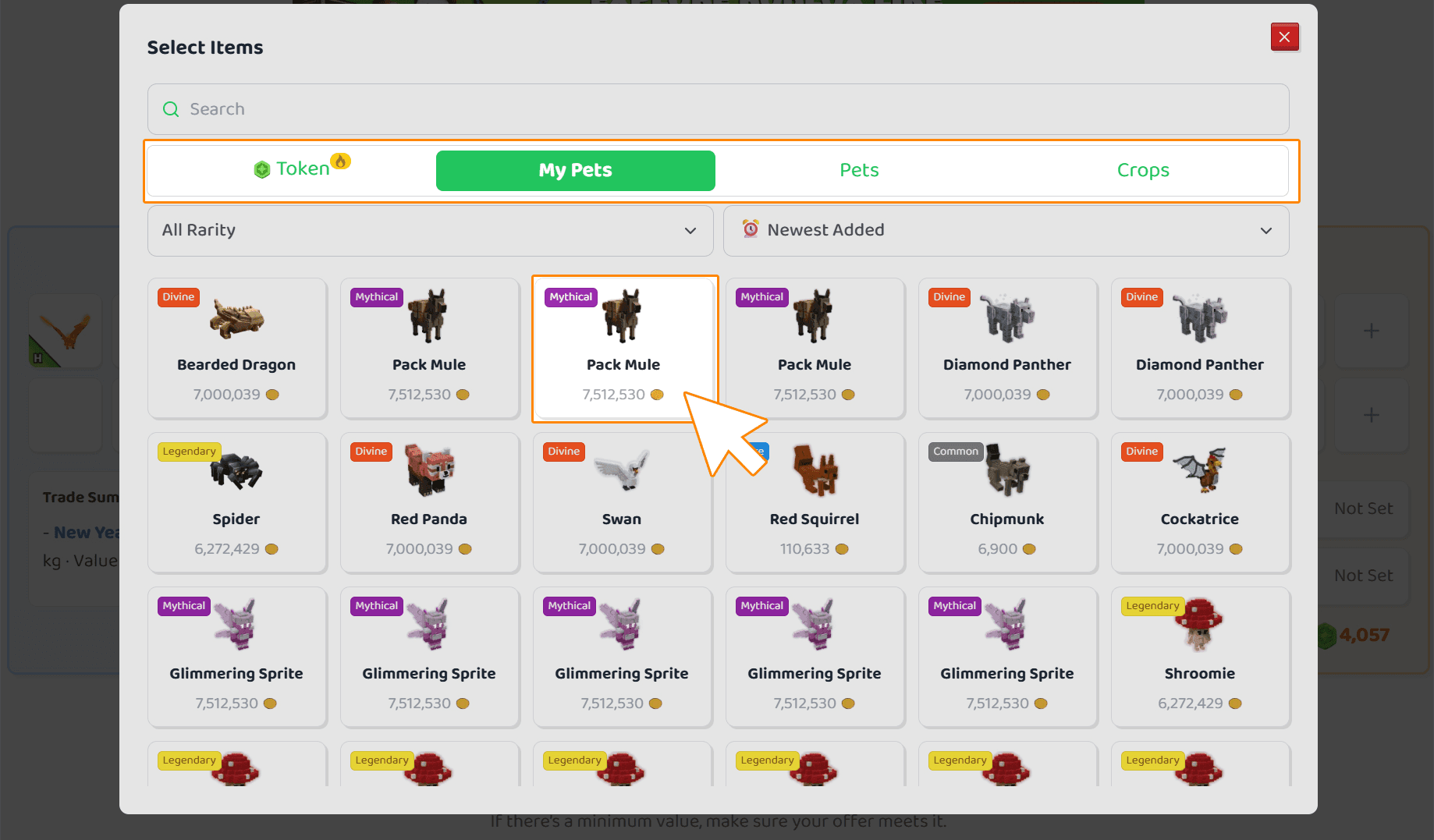
- To make an offer, select the items you want to trade from your inventory.
- Add the items you want to receive on the other side, then submit your offer.
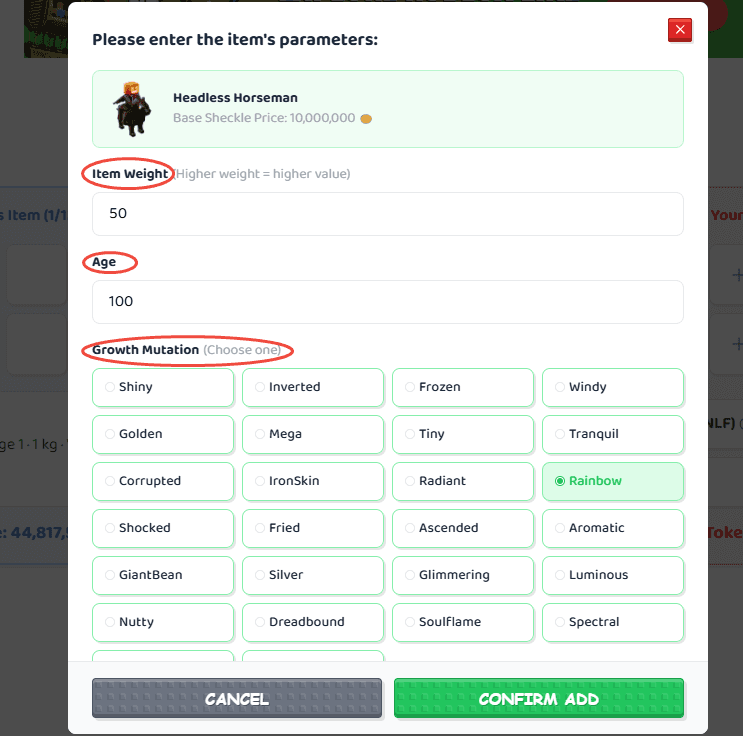
Set item attributes for accurate value
- Accurately set the attributes for your items (such as age, weight, or mutation effects) to match their in-game stats.
- This helps the value system estimate your trade more accurately.
After You Submit an Offer
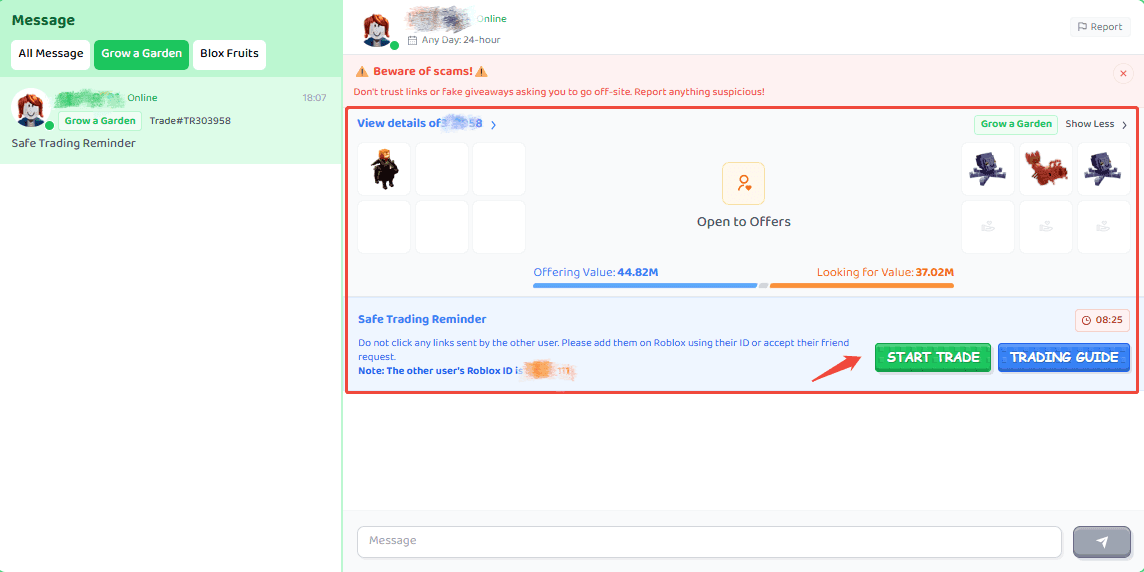
- If your offer is accepted, you will receive a trade request from the other user in your Messages.
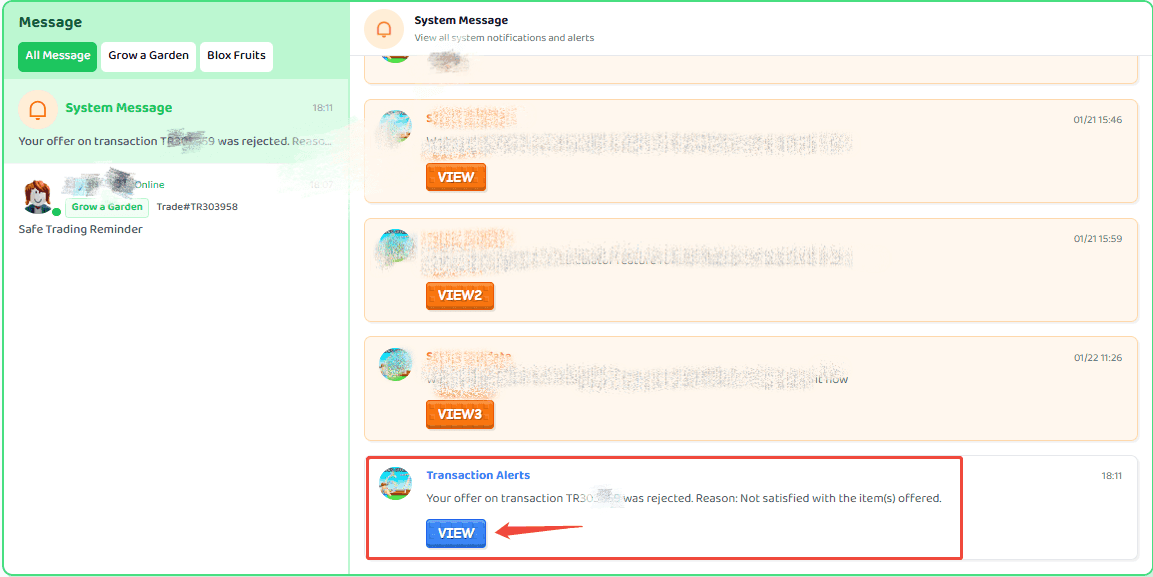
- If your offer is rejected, you can view the reason on the trade details page or in your Profile.
Finalizing the Trade via the Message Center
- Once an offer is accepted, a trade chat will be created in your Messages.
- Use the messaging system to coordinate the in-game exchange with the other user.
- For your security, never click on any links that lead to external websites.
- After you have completed the trade in-game, please confirm it in the message window. Otherwise, the trade will automatically expire after 72 hours.
- Once a trade is completed or canceled, the chat will be closed. To message the user again, you must initiate a new trade.
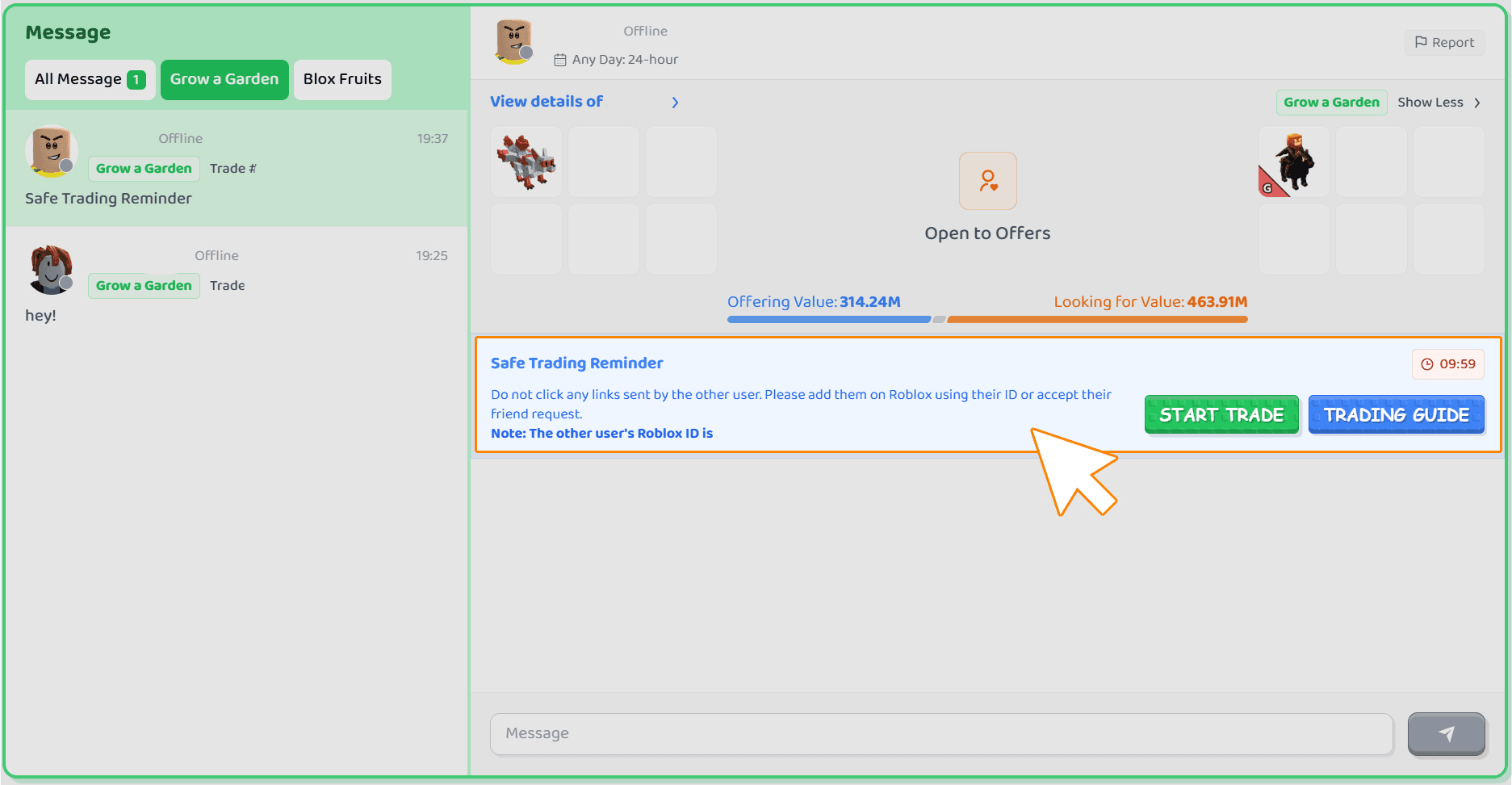
Safety trading tips: We recommend that you always remember the contents of the Safety Trading Guidelines.
Posting a Trade as a Seller
When creating a trade listing, be sure to set your trading availability.
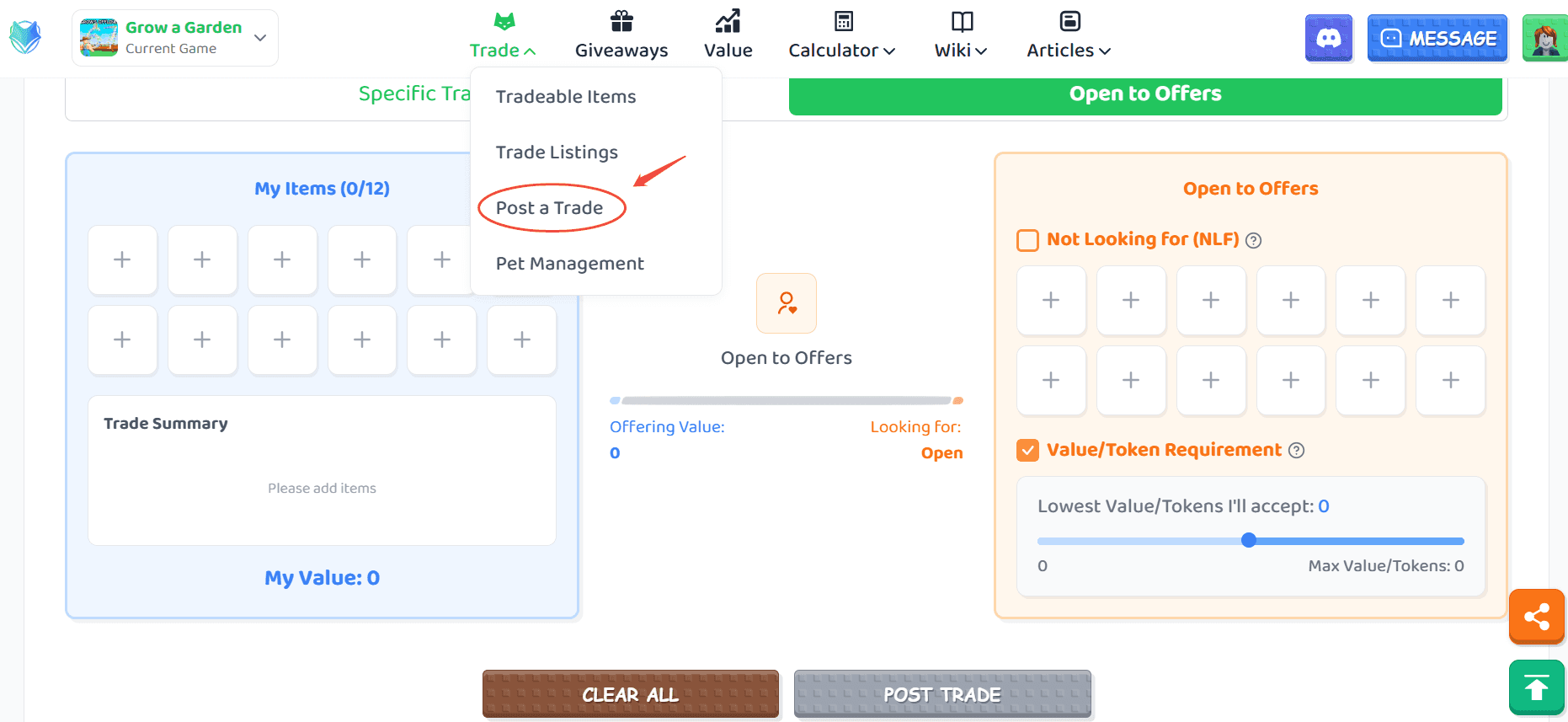
Choose Your Listing Type
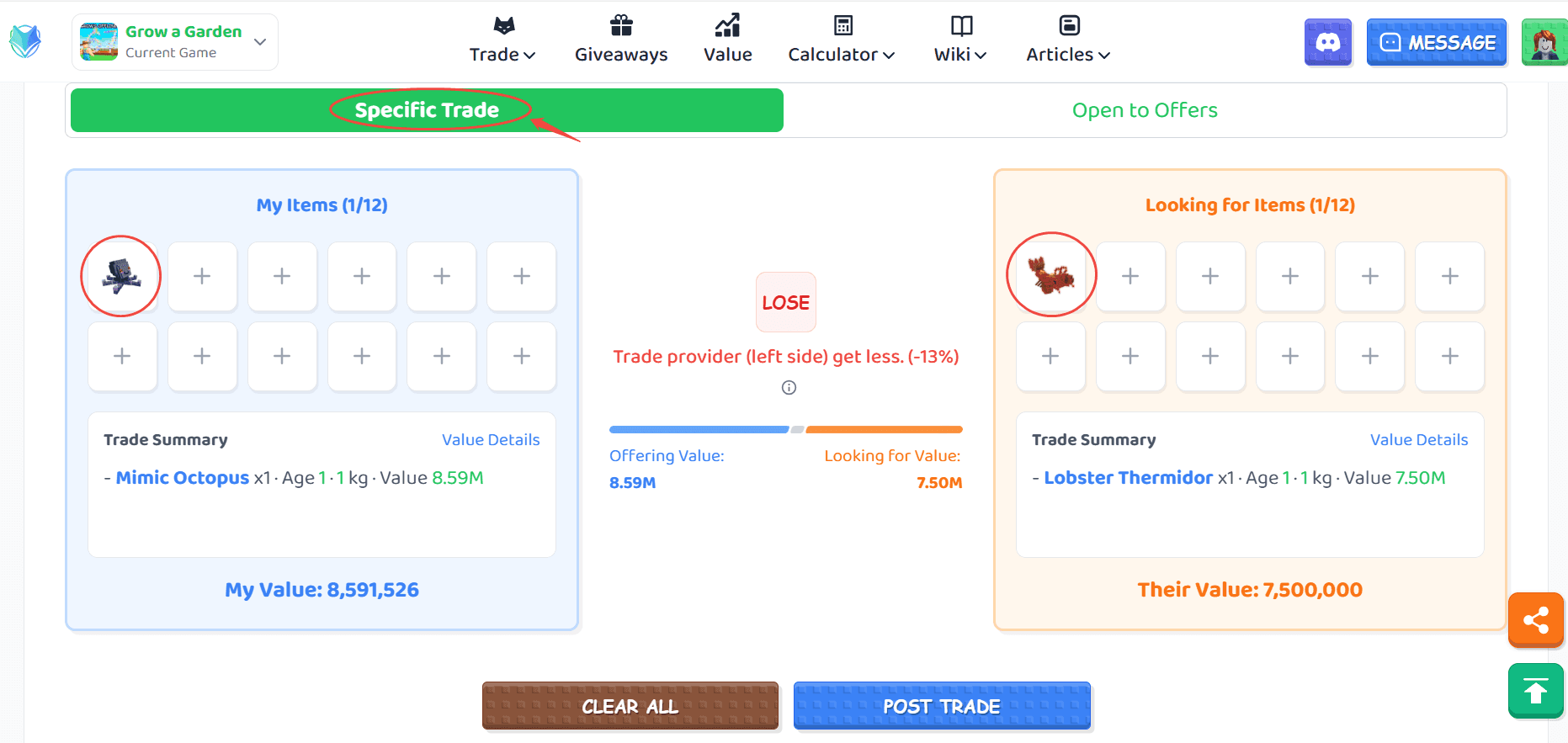
- Specific Trade: Add both the items you are offering and the items you want in return. Be sure to specify item details (such as age, weight, or mutation effects) when needed.
- Open to Offers: List only the items you are offering. You can also set a minimum offer value, which requires incoming offers to meet or exceed that value.
- You can use our tool to check the WFL of your listing. (Click here to see how WFL is calculated).
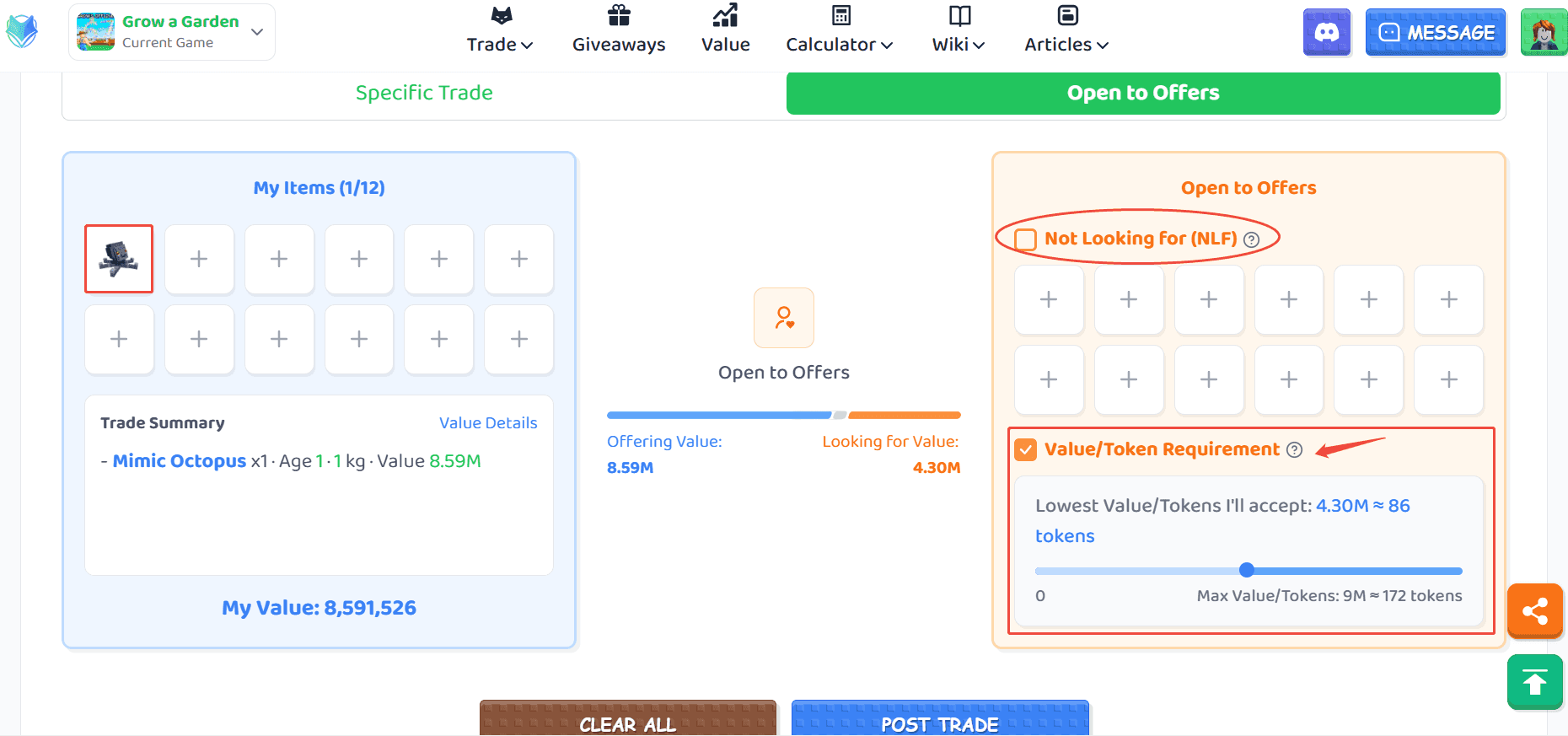
Note: The minimum value you set cannot be higher than the total value of your offered items.
Quick Item Selection
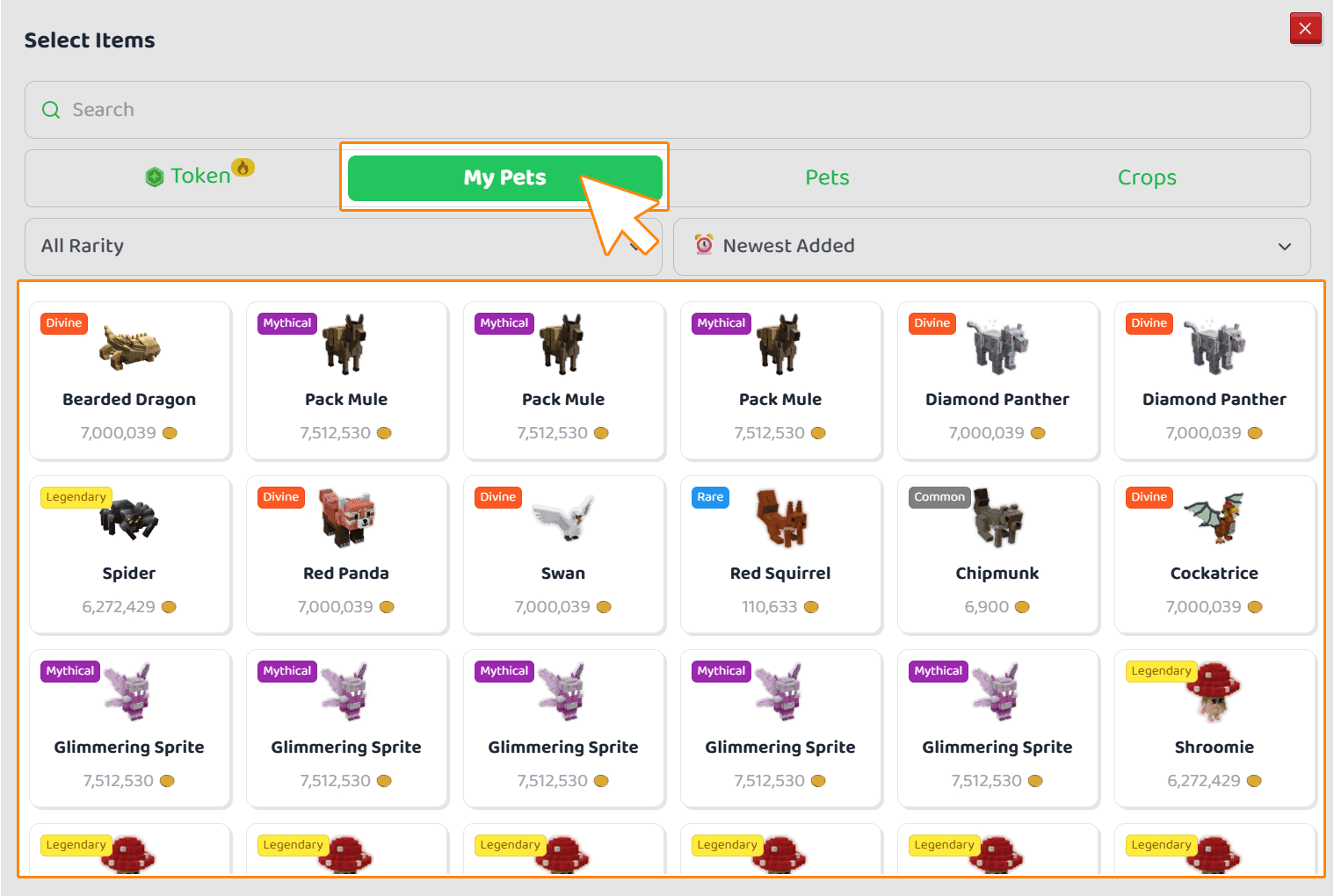
- Quickly pick from Pet Inventory Management: after you upload your screenshot in Pet Inventory Management, you can select items from My Pets while adding items to your trade.
Managing Your Listings
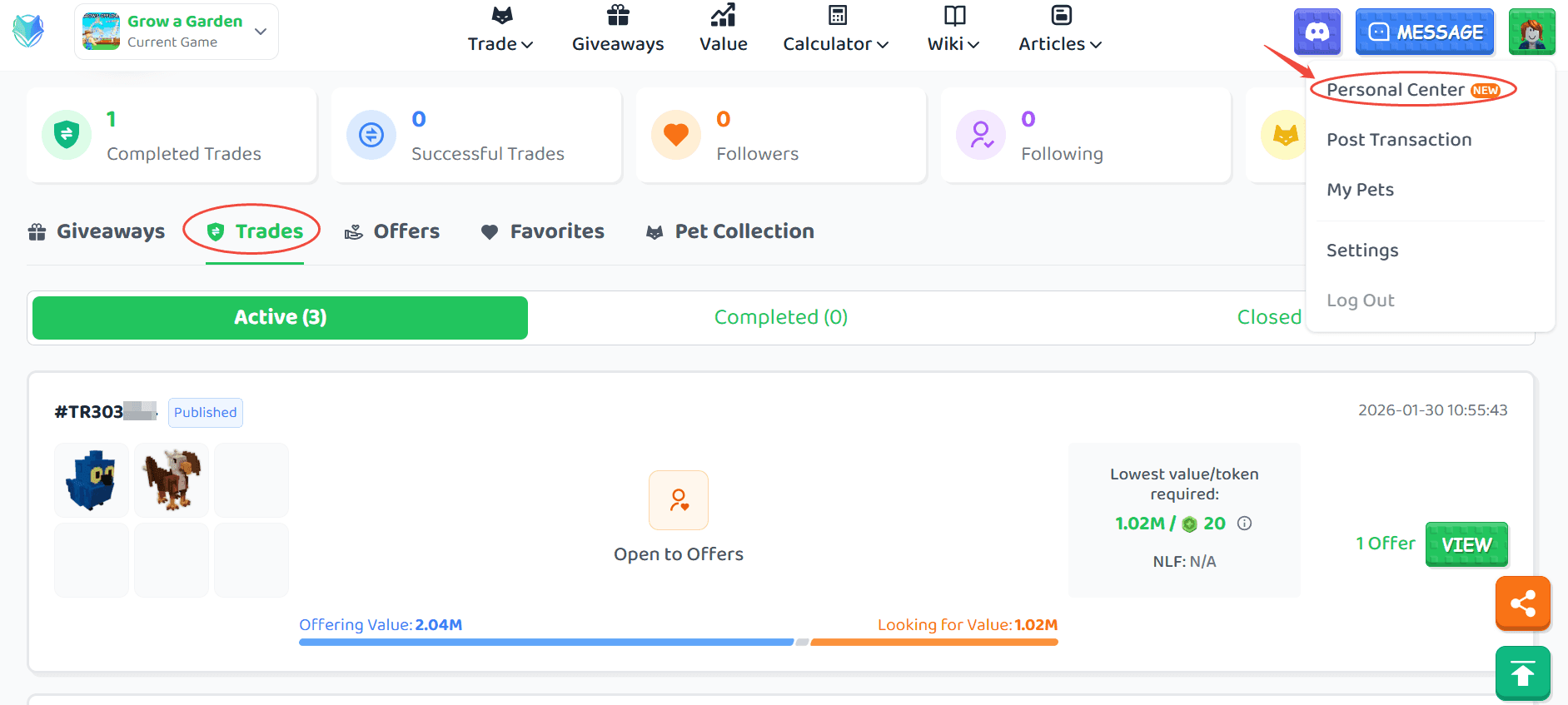
You can view and manage your active listings by navigating to Personal Center.
Managing Incoming Offers
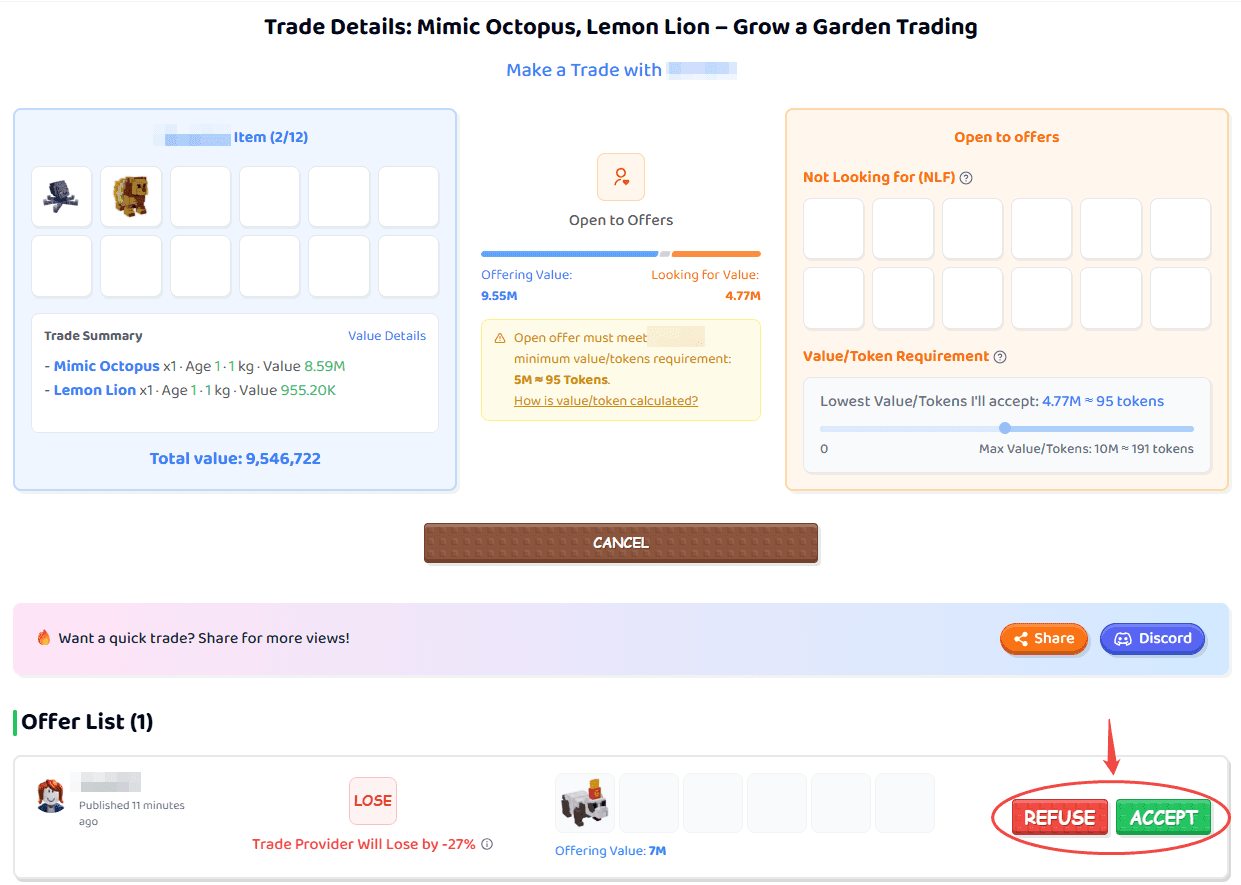
- When you accept an offer, all other pending offers on that listing will be automatically rejected.
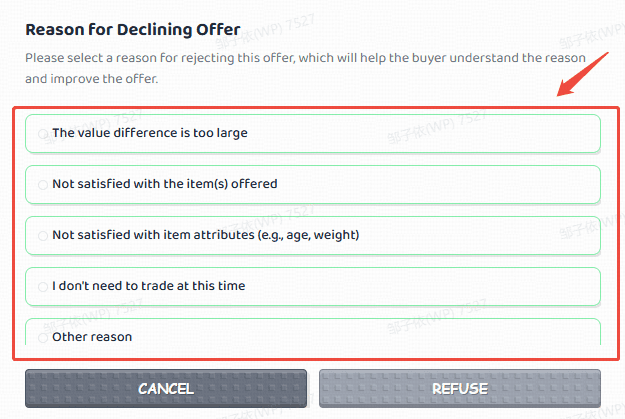
- When rejecting an offer, you must select a reason so the other user understands what to improve.
From the trade details page, you can manage all incoming offers by accepting or rejecting them.
Explore More Tools
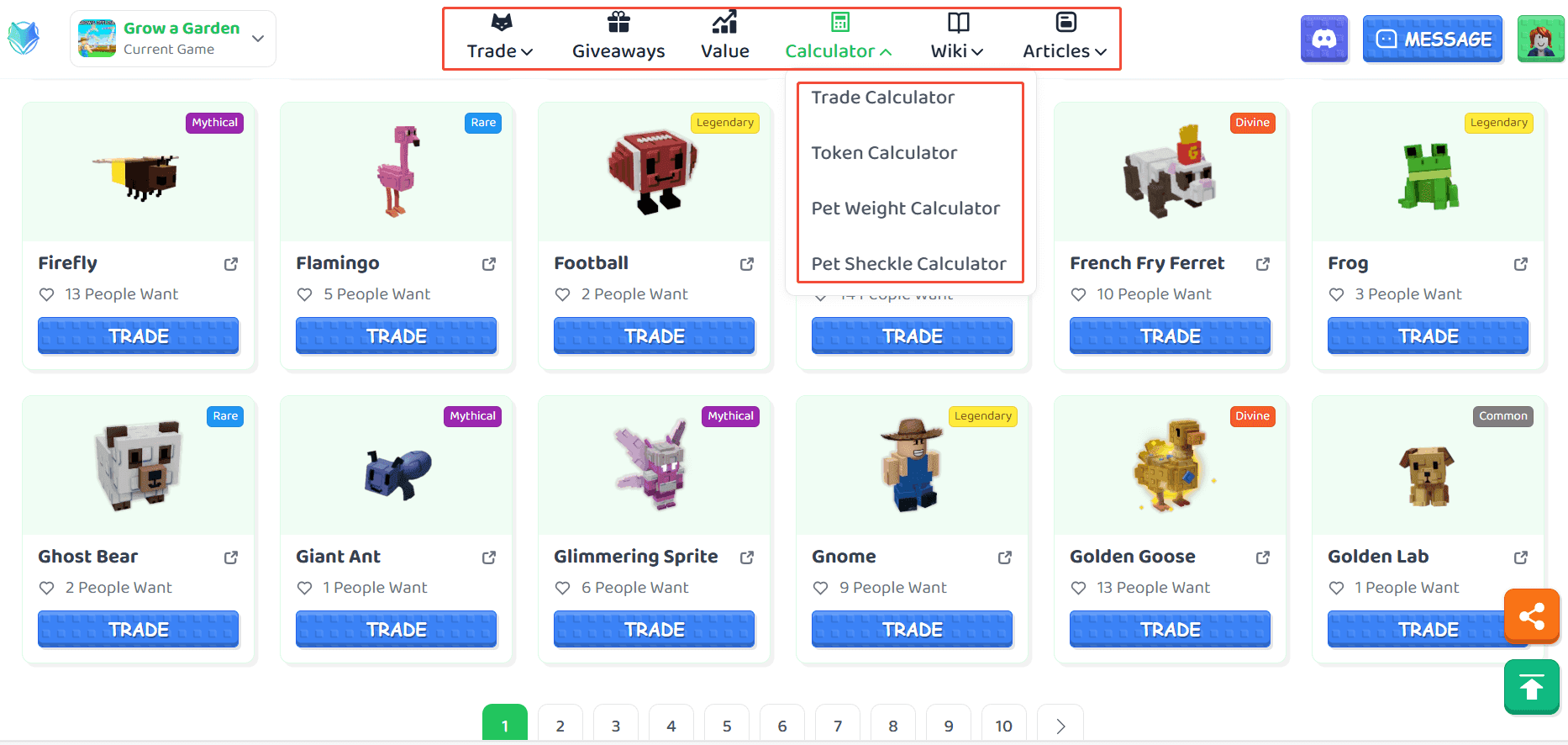
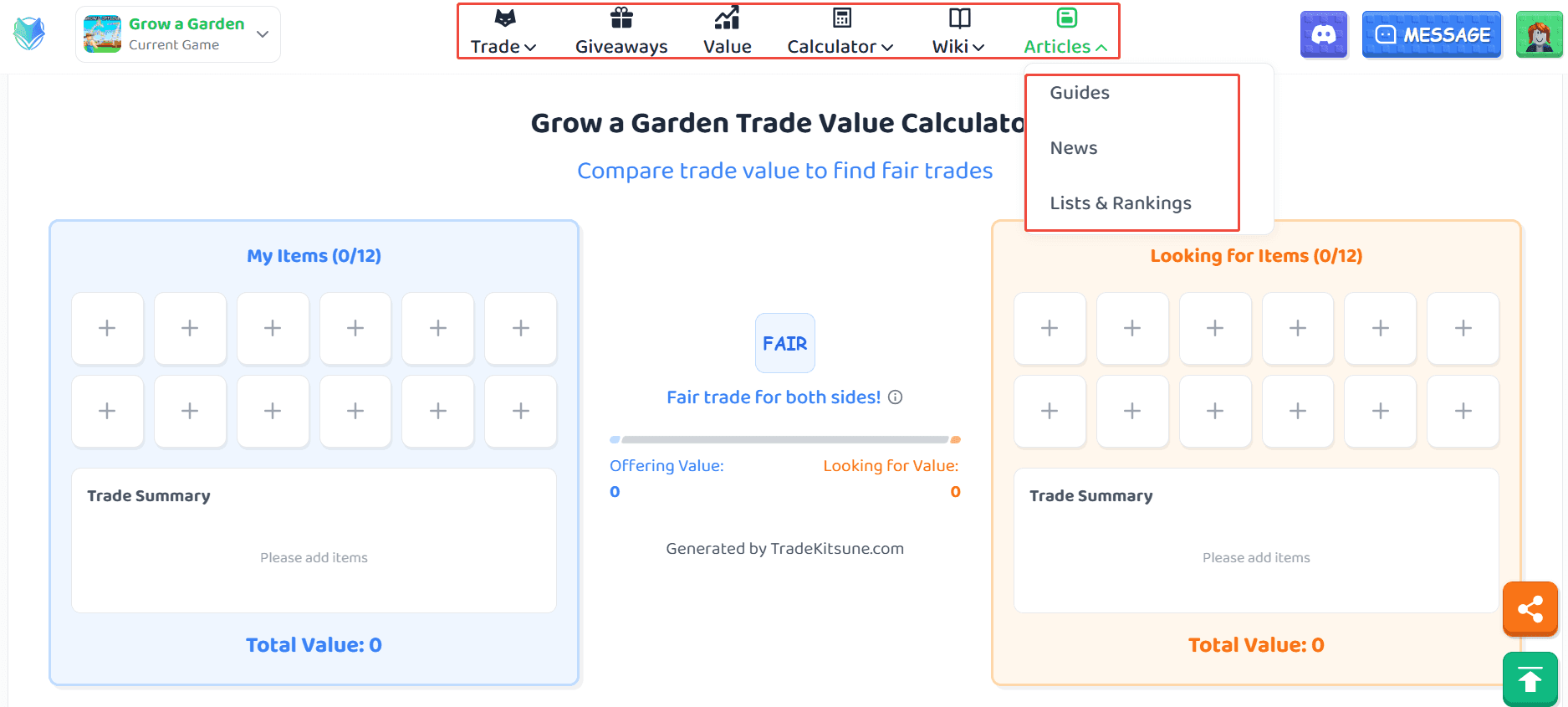
Want more help beyond trading? Use the top navigation to explore tools that improve your gameplay and trading experience, such as Value, Calculator, Wiki, and Articles—all tailored to the game you selected in the top-left game switcher.
Thank you for choosing TradeKitsune! We are dedicated to providing a secure, efficient, and friendly trading experience for every Roblox player.
Happy trading and endless exploration in your gaming world!